Excel to PDF, Laid Out the Way You Want
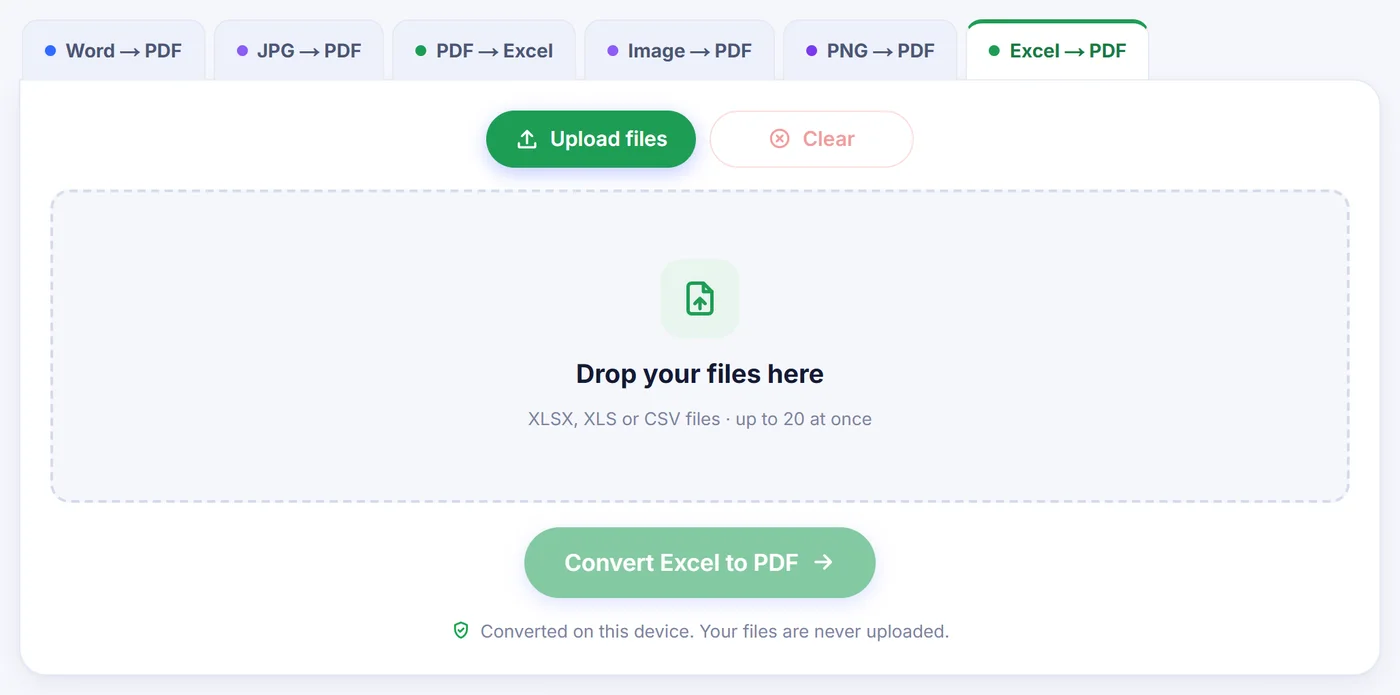
Excel to PDF without the print-setup headache: choose the sheets, see every page in a live preview and save a clean PDF. Your workbook is read inside this browser tab and never leaves your device.
Converted on this device. Your files are never uploaded.
How it works
Drop in your workbook
Add one or more XLSX, XLS or CSV files; each spreadsheet becomes a card you can reorder or remove before you start.
Tick sheets and set the page
Choose which tabs to print, how the columns should fit, the paper size and orientation, and watch the preview update as you click.
Save the result
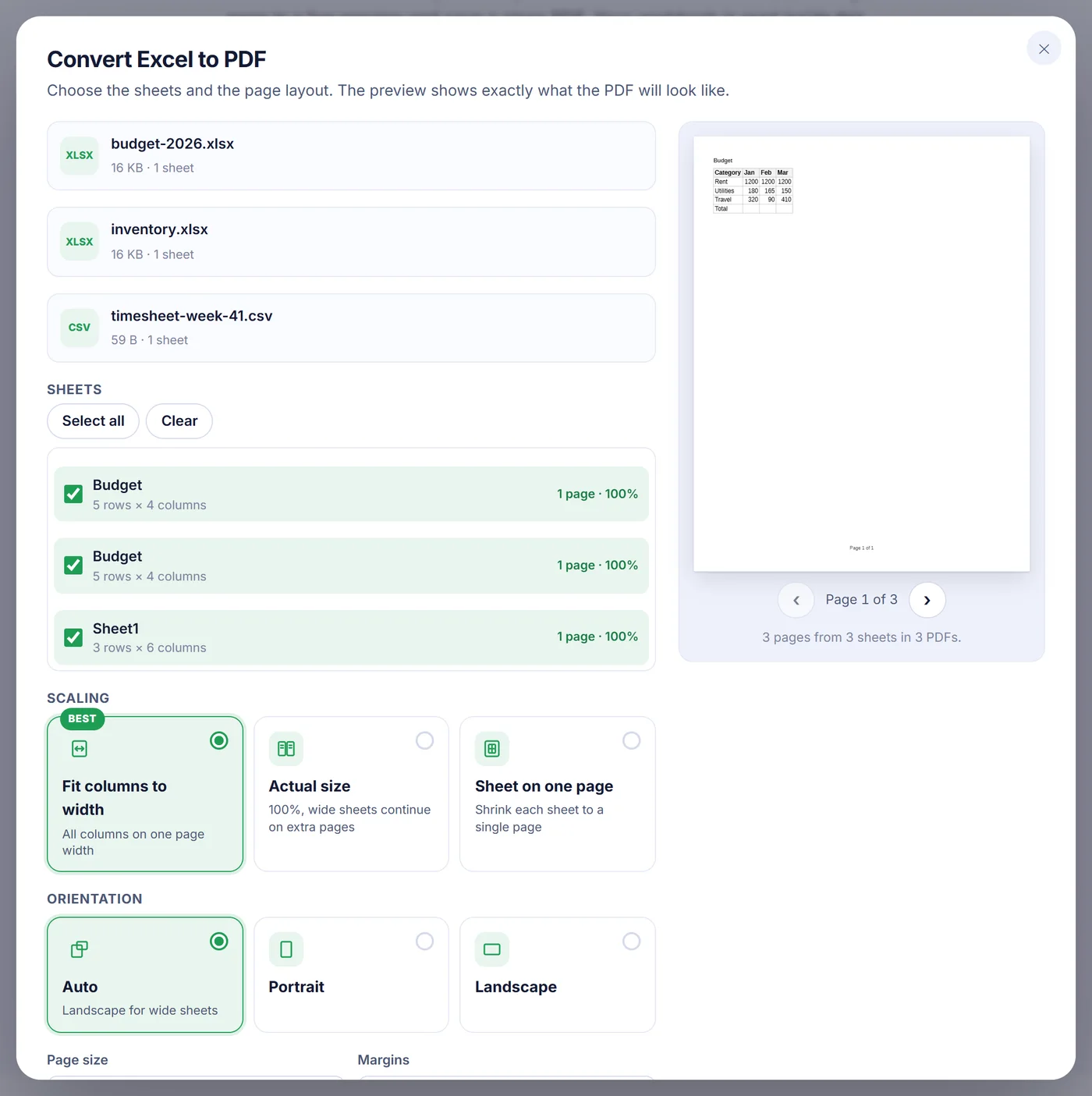
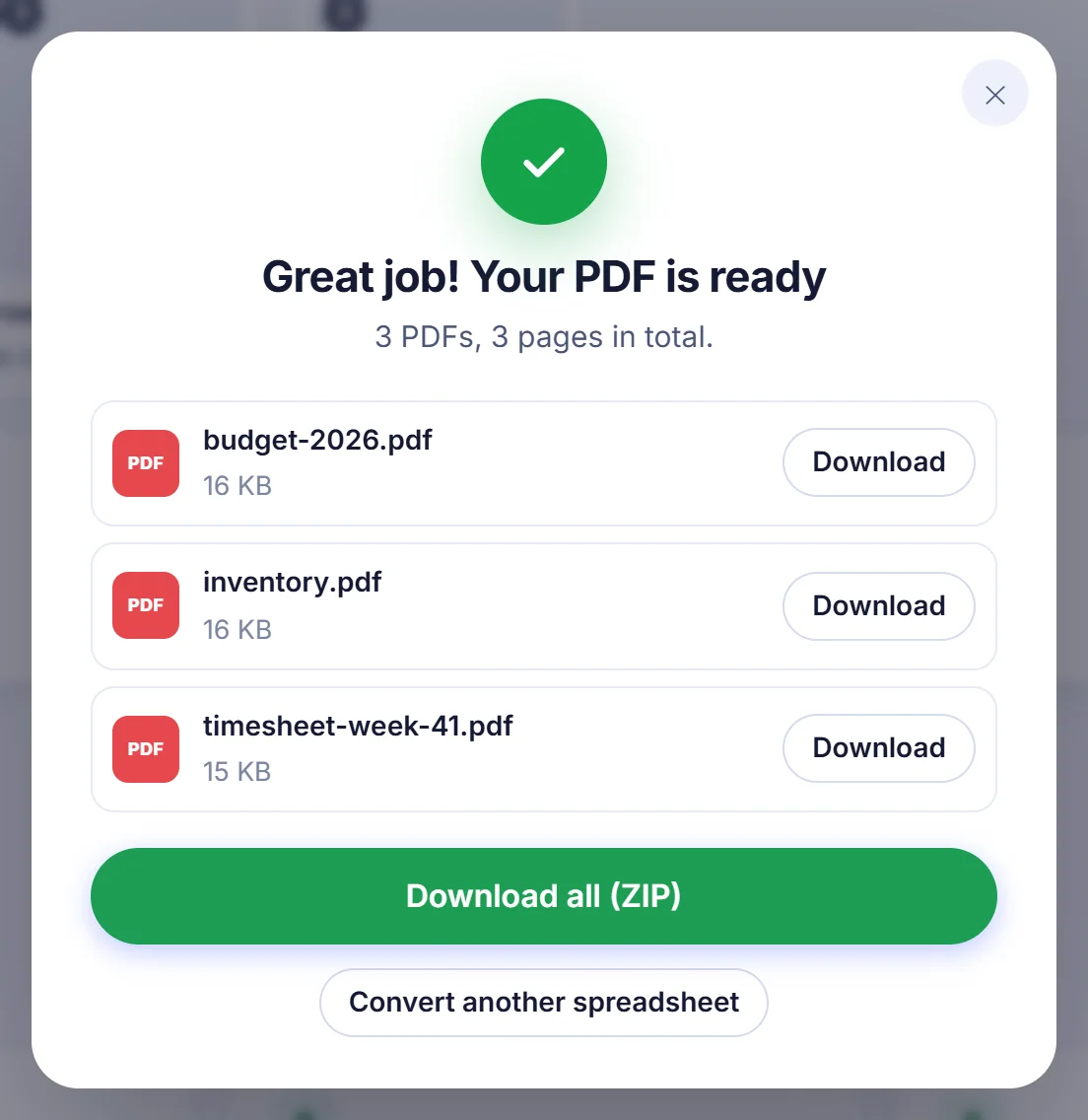
Download one PDF with a bookmark for every sheet, or separate PDFs per sheet (or per workbook when you added several) bundled in a ZIP.
Why people convert Excel to PDF
A spreadsheet is a working tool; a PDF is a finished one. When you send a price list to a client, attach a timesheet to an invoice, hand a budget to the board or submit grades to a school office, you want the reader to see the numbers exactly as you arranged them, not a grid they can accidentally edit or sort. You also should not depend on the other person owning Excel or finding the right tab in a workbook with twelve of them.
The tricky part is never the file format itself. It is the page. Excel sheets have no natural edge, so a table that looks fine on a wide monitor can spill onto three sheets of paper, with the last column alone on a page and no header row on page two. This converter is built to solve that.
How the conversion works here
- Add your files. XLSX, XLS and CSV are accepted, and you can add several workbooks in one go. Every file you add is opened, not just the first one.
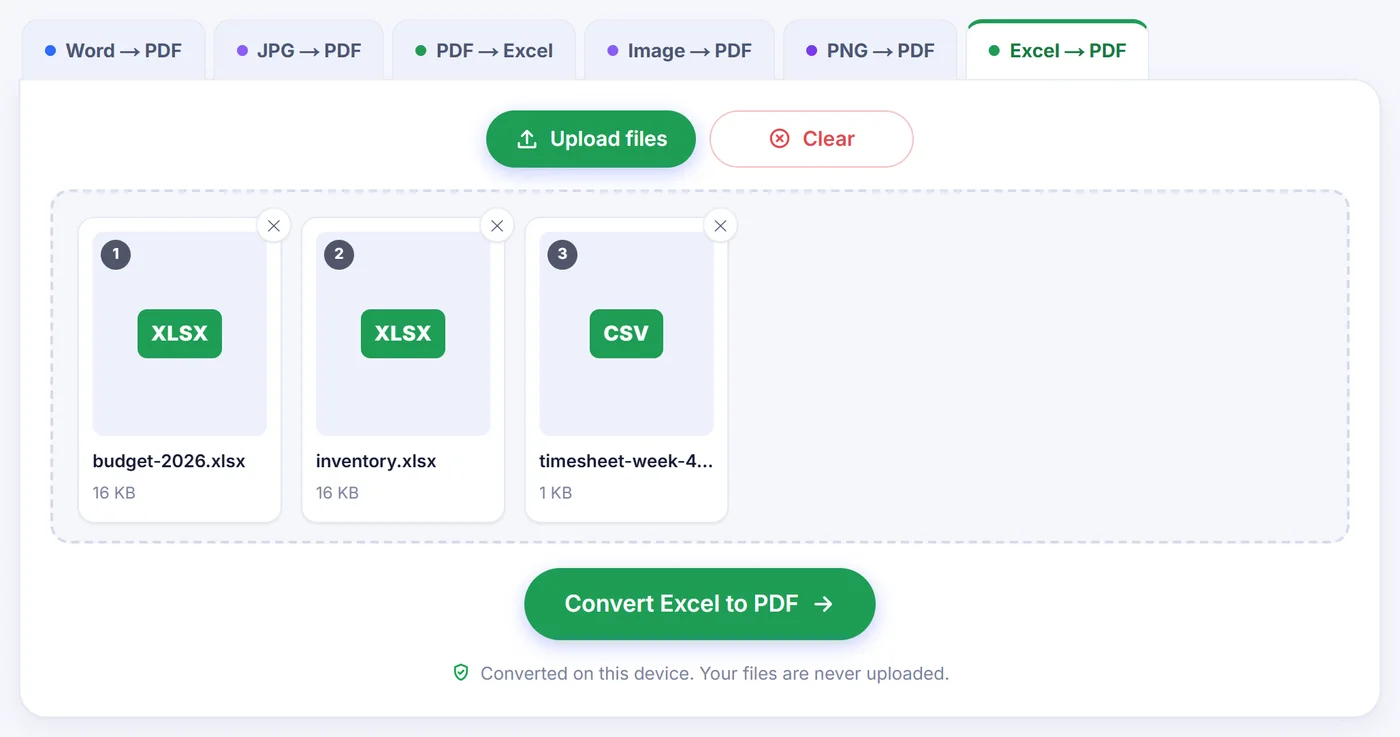
- Pick the sheets. A checklist shows every tab with its size in rows and columns. Hidden sheets start unticked, so a leftover lookup table does not end up in the PDF unless you tick it, and empty sheets are greyed out. Next to each ticked sheet you see how many pages it will take and at what scale.
- Choose the scaling. Fit columns to width (the recommended choice) shrinks a sheet just enough that every column sits across one page, while rows flow down onto as many pages as needed. Actual size keeps 100% and lets wide sheets continue on extra pages. Sheet on one page squeezes a whole tab onto a single page, handy for a summary; a very long sheet still continues on more pages, because text never shrinks below 30%.
- Set the page. Orientation can be automatic (landscape is picked for wide sheets), portrait or landscape. Paper sizes are A4, Letter, Legal and A3, with narrow, normal or wide margins.
- Check the preview, then convert. The preview is drawn with the same layout code that writes the PDF, so what you page through is what you get.
Extra settings worth knowing
- Repeating header rows. The column titles can be printed again at the top of every page. On automatic, the converter uses the sheet's print titles if it has them, otherwise its frozen rows, otherwise the first row. You can also force the first one to five rows.
- Gridlines, page numbers and sheet names. Each can be switched on or off. Page numbers read "Page 3 of 8" at the bottom, and the sheet name sits at the top of each page.
- More options. Highlight the header row in bold on light grey, center the table horizontally, honour or ignore the print area, include hidden rows and columns, and keep the column widths from the file or fit them to their content.
- Output. With several sheets you can get one PDF or one PDF per sheet. With several workbooks the default is one PDF per workbook, and a single combined PDF is also available. Separate PDFs can be downloaded together as a ZIP.
Scaling, orientation, paper size, margins, gridlines, header repetition, page numbers, sheet names and centering are remembered in this browser, so a monthly report comes out the same way next month.
What carries over from your spreadsheet
The converter reads the formatting straight from the workbook rather than guessing. Column widths and row heights, merged cells, number formats such as currency, percentages and dates, bold, italic and underlined text, font sizes and colours, cell fills, borders (including dotted and dashed ones), horizontal and vertical alignment and wrapped text all come through. It also respects what you prepared for printing in Excel: the print area, print titles, manual page breaks and a sheet set to landscape. Fonts, borders, frozen rows and page breaks are read from XLSX files; an older XLS file keeps its values, number formats and merged cells but comes out with plain text and no cell borders.
A few details behave like Excel does on paper. Long text spills into empty neighbouring cells instead of being cut off. Numbers that are too wide for their column are shrunk to fit rather than turned into a row of hash signs. Web and email links in cells stay clickable. Pages run down first, then across, the same order Excel uses.
The PDF holds real text and vector lines, not a screenshot. You can search it, copy figures out of it and zoom in without blur. When one PDF holds several sheets, each sheet gets its own bookmark, so readers can jump straight to the tab they need.
What does not come through
Be aware of the limits before you send something important. Charts, pictures, shapes and comments are not drawn: only cell content and cell formatting are converted, and a sheet that holds nothing but a chart cannot be converted at all. All text is set in one clean sans-serif typeface, so Calibri, Arial or a decorative font becomes that face at the same size and weight, and strikethrough is dropped. Formulas are not recalculated; the PDF shows the values that were last saved in the file. CSV files carry no formatting, which is why the header row is highlighted for you by default when a CSV or XLS file is added.
Tips for a neat Excel to PDF result
- For a very wide sheet, try landscape on A3 before accepting small print. If the scale would drop below 30%, the converter splits the columns across extra pages instead, and the sheet name at the top shows which column range each page covers.
- Set a print area in Excel if only part of a sheet should appear. It is used automatically.
- Freeze your header row in Excel and it will repeat on every page with no extra setting.
Common problems and quick fixes
"This spreadsheet is password protected." Encrypted workbooks cannot be opened here. Remove the password in Excel under File, Info, Protect Workbook, or save an unprotected copy, then add that copy.
"This file could not be read." The file is damaged or not really a spreadsheet. Open it in Excel or another spreadsheet program and save it again as XLSX.
"Nothing to convert." Every sheet is empty, or the content is only charts and images.
Huge workbooks on a phone. Everything happens in your device's memory. If the browser runs out, convert fewer sheets at a time, close other tabs, or use a computer. You can cancel while the PDF is being written.
Privacy: the spreadsheet stays with you
Salaries, sales figures and customer lists are exactly the kind of data you should not hand to a stranger. Here nothing is sent anywhere: the page loads the converter code, and your browser does the reading, layout and PDF writing on your own computer or phone. No copy exists anywhere else, there is nothing to delete later, and closing the tab removes it all. No account, no email address and no watermark are involved.
Frequently asked questions
How do I convert an Excel file to PDF without Excel?
Add the XLSX, XLS or CSV file on this page, tick the sheets you want and press the convert button. Everything runs in your web browser, so no spreadsheet program has to be installed.
How can I fit an Excel sheet on one page in a PDF?
Choose "Sheet on one page" under Scaling to shrink each sheet onto a single page (very long sheets stop at 30% and continue on extra pages). If you only need every column across the page width, "Fit columns to width" keeps the text larger and lets rows continue onto more pages.
Can I convert all sheets of a workbook to one PDF?
Yes. Tick every sheet in the list and keep the single PDF output; each sheet gets its own bookmark. You can also ask for one PDF per sheet, delivered as a ZIP.
Will my header row repeat on every PDF page?
Yes, it is on by default. The converter uses your print titles or frozen rows when the sheet has them, and you can also choose the first one to five rows yourself.
Are charts and images included when converting Excel to PDF?
No. Only cells, their values and their formatting are converted; charts, pictures and shapes are left out.
Is it safe to convert a confidential spreadsheet here?
The workbook is processed inside your own browser and is never sent to a server. When you close the tab, nothing of it remains.
Can I convert a password-protected Excel file?
Not directly. Remove the password in Excel or save an unprotected copy first, then convert that copy.